
A ticket gets resolved, but the support review ends with an open question: which group was it stuck in? The total resolution time tells only part of the story. To improve the workflow, you also need to separate internal commitments, find the right procedure and know who can see each document.
GLPI 12 changes several of those tools. This guide walks through what they mean for technicians and administrators, with screenshots from GLPI 12.0.0. If you’re deciding how to upgrade from GLPI 10, that’s covered in our guide to the GLPI 10 end of support.
In 30 seconds
- Review group OLAs if your tickets pass through several teams.
- Check who can read each branch of the knowledge base.
- Decide which ticket attachments stay internal and who reviews active sessions.
- Compare dashboards and integrations against real work before you sign off on the upgrade.
Group OLAs: separate internal commitments
An SLA is a commitment to the people who receive the service. An OLA sets commitments inside the team that delivers it. Both existed before; what’s new in GLPI 12 is tracking OLAs per group. The service levels documentation and the GLPI 12 release notes cover the distinction.
Take a case that first needs a diagnosis from Infrastructure and then work from Applications. Looking only at the final deadline makes it hard to tell which part of the workflow needs attention. Tracking per group gives you a better basis for talking about those waits.
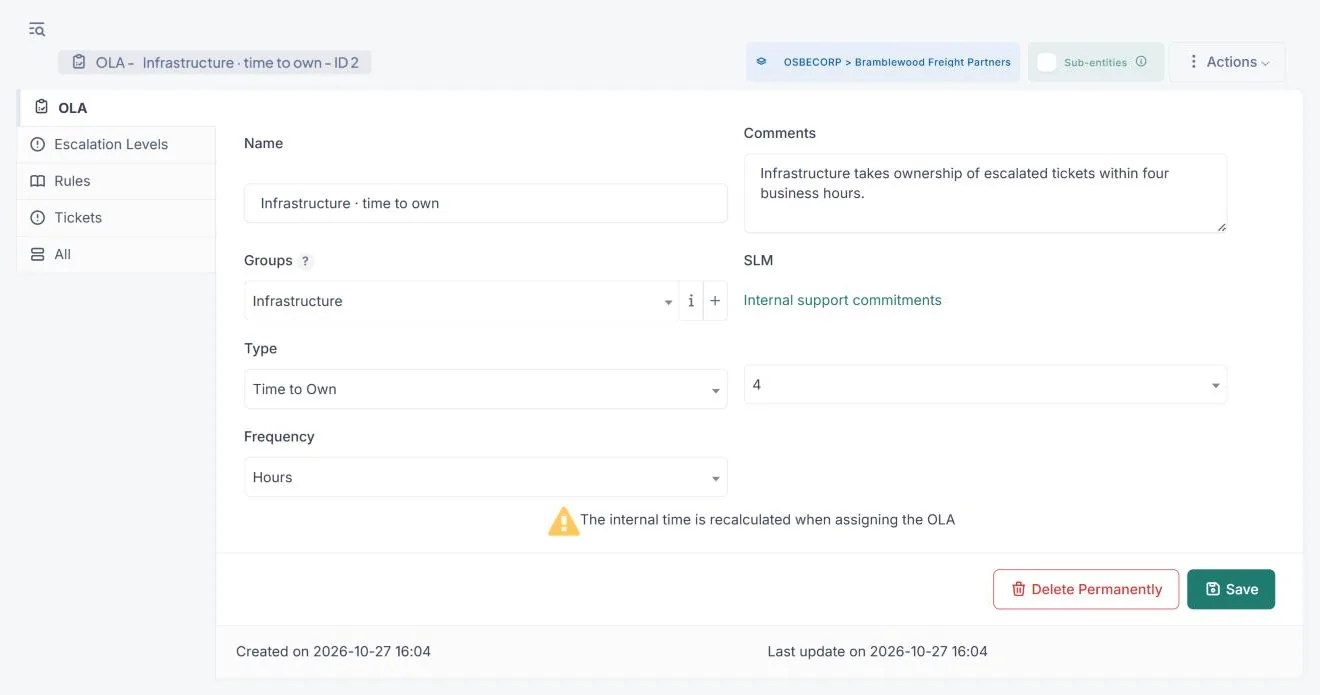
What to review. Write down what taking ownership of a case means for each group and which hours it works. A four-hour target only makes sense with that context. To validate the workflow, run a controlled test with the assignments your technicians actually use.
Knowledge base: the tree also organizes access
The knowledge base moves from separate categories to nested articles: a parent article holds its child articles, and the side tree lets you move between them without leaving the reading view. GLPI 12 also adds a new editor and review tools. The 12.0.0 changelog details the structure and its permissions.
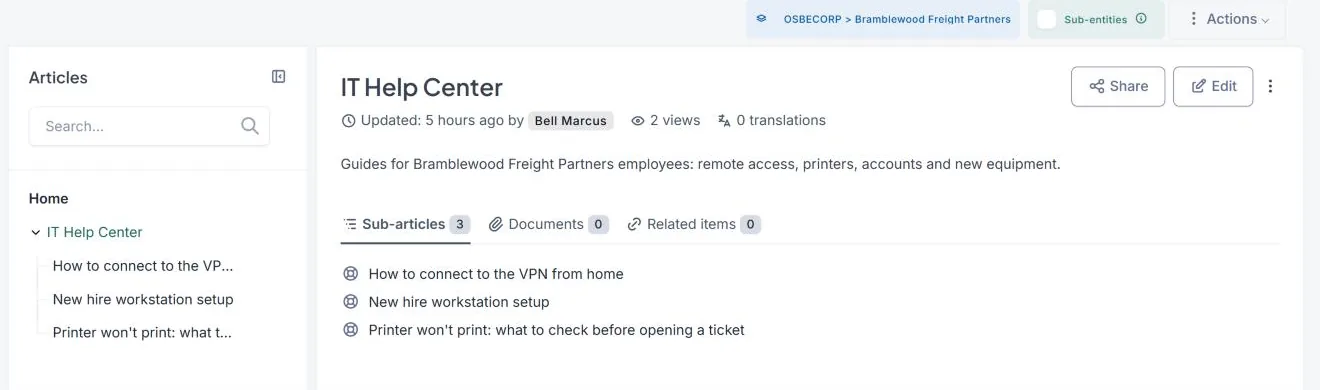
What matters when you manage this structure is visibility inheritance: access to a parent article can grant read access to its descendants. The root is handled differently and doesn’t grant that access automatically. Categories converted during an upgrade need their visibility reviewed.
What to review. Keep end-user instructions apart from internal procedures. “How to request access” and “How to grant access” may cover the same system and need different audiences. Review each branch with the target profile; checking it as an administrator isn’t enough.
Tickets: decide which documents the requester sees
A diagnostic report can be useful to the technician and still contain details the requester shouldn’t see. GLPI 12 lets you hide specific ticket attachments from requesters. The official announcement also covers notifications for replaced participants and search criteria restrictions by profile.
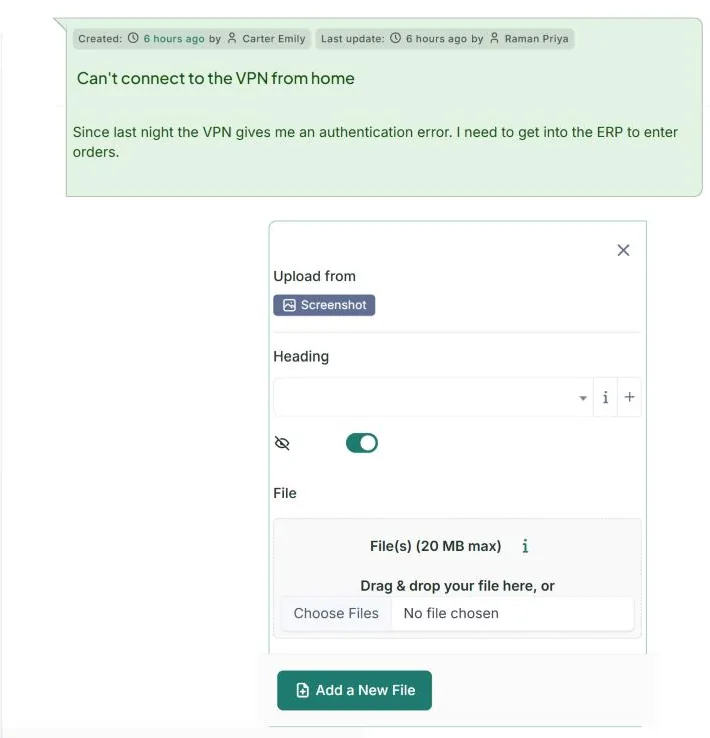
What to review. Decide which kinds of documents can go to the portal and who makes that call. Then test access with each profile involved, including the link to the file.
If you restrict search criteria, make sure technicians keep the searches they need to do their work. Simplifying a search and protecting access to data are separate decisions, and hiding a search criterion shouldn’t be your only confidentiality control.
Security: view sessions and confirm identity again
Under Setup → Security → Login sessions, GLPI 12 lists active sessions with filters and revoke actions. It can also ask users to confirm their identity before they enter a protected section. These are two separate controls, both listed among the GLPI 12 security changes.

The list helps you investigate access that needs a second look, for example after a laptop is lost. Decide who checks it, how they verify the context of a session and when they escalate a finding.
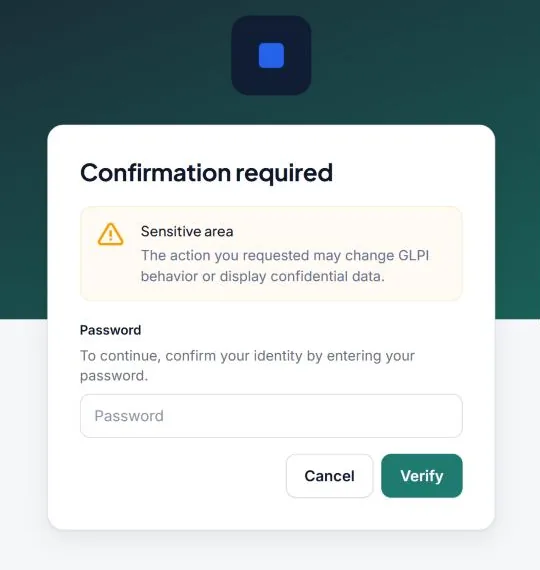
The documentation supports confirmation with a second factor, with the password as an alternative.
Dashboards: start with the question you want answered
GLPI 12 adds dashboard filters, including entity, groups, statuses, SLA, technician and operating system, along with new analysis panels, as the official GLPI 12 notes describe. How useful they are depends on what you’re trying to see.
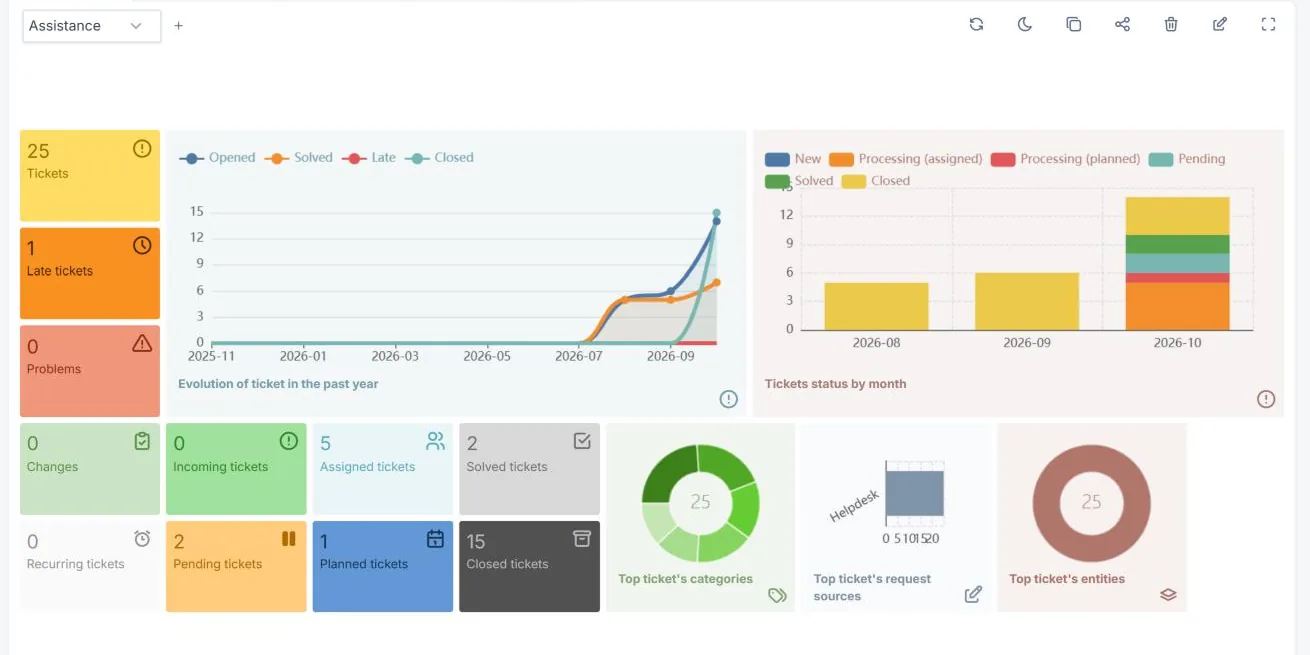
For a review meeting, start with one question, such as which group has the largest backlog or which category takes the most work. Then define the scope and the period. Comparing a full month with a single week, or two entities with very different workloads, leads to conclusions you can’t act on.
What to review. Check a dashboard count against its list of records, and save the filters you used.
API and integrations: choose the version explicitly
GLPI 12 adds version 3 of its High-Level API, with stricter schemas, while earlier versions remain available. The GLPI 12 release site explains how to pick a version with the GLPI-API-Version header or the /api.php/v3.0 endpoint.
An API that’s still available doesn’t guarantee that every automation still gets the result it expects. A connector that reads the knowledge base, for example, has to account for its new structure. The changelog also lists schema field differences between versions, so pin the contract each client uses.
For a business integration, put together a small sample of operations and compare fields, permissions and errors. Record which version each client requests and what it expects back before you change anything.
What to check in your installation
Use this table as a review checklist.
| Feature | What changed | What to review in an existing installation |
|---|---|---|
| OLAs | Tracking per group | Owners, working hours and handoffs in a controlled case. |
| Knowledge base | Nested articles and inherited visibility | Read access to each branch with internal and self-service profiles. |
| Attachments | Documents hidden from the requester | Publishing criteria and file access with each profile. |
| Participants and search | Notifications and restrictions by profile | Who gets notified and which searches each role needs. |
| Sessions | Central view and revocation | Who reviews them and what to do with a suspicious session. |
| Dashboards | More filters and panels | Scope, period and match with the record lists. |
| API | High-Level API v3 alongside earlier versions | Requested version, expected fields and connector permissions. |
Where to start
If your help desk escalates a lot of cases, start with the commitments between groups. If documentation exists but is hard to find, look at the tree and its audiences. If you handle requests with internal information, review attachments and sessions before you open up the portal further.
Pick one workflow, write down the expected result and test it with the roles that use it.
Related reading: GLPI 10 end of support: should you upgrade to GLPI 11 or GLPI 12?, which covers choosing a version and preparing the upgrade.